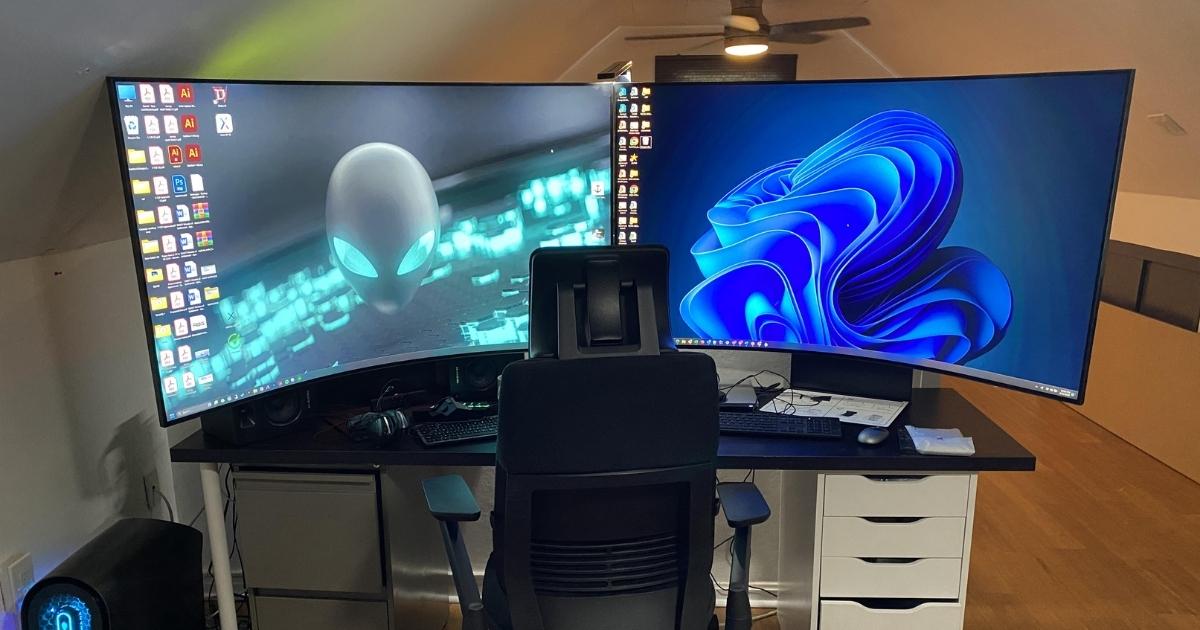
If you spend hours in front of a screen every day, whether you are working, gaming, or streaming, a dual curved monitor setup can completely transform your experience. The combination of two curved displays creates a wide, immersive workspace that reduces eye strain, improves multitasking efficiency, and delivers a more natural viewing experience than flat panels ever could.
This guide walks you through everything you need to know: what a dual curved monitor setup actually is, the real benefits it offers, how to choose the right monitors, and a detailed, step-by-step process to get everything configured correctly.
What is a Dual Curved Monitor?
A dual curved monitor setup refers to using two curved displays side by side to extend your desktop workspace. Unlike traditional flat screens, curved monitors are designed with a slight inward bend that follows the natural arc of human peripheral vision.
Curvature is measured using an “R” rating in millimeters. Common ratings include:
- 1000R — A tight curve that closely matches the curvature of the human eye. Best for immersive gaming at close distances.
- 1500R — A moderate curve that suits mixed use, including productivity and casual gaming.
- 1800R — A subtle curve ideal for everyday productivity and users who prefer a gentler bend.
The lower the number, the more pronounced the curve. When you place two curved monitors next to each other, they create a panoramic, wraparound effect that flat monitors simply cannot replicate.
Benefits of a Dual Curved Monitor Setup
Before investing in two curved displays, it helps to understand exactly what you gain. Here are the most significant advantages:
Reduced Eye Strain Curved monitors align more closely with your natural field of view. Because the edges of the screen stay at a consistent distance from your eyes, you experience less refocusing fatigue during long sessions. For professionals who stare at screens for eight or more hours daily, this ergonomic benefit alone can make a meaningful difference.
Enhanced Immersion for Gaming Curved screens fill more of your peripheral vision than flat panels. When gaming on your primary display, the curve draws you deeper into the action. The wraparound feel is especially effective in open-world games, racing simulators, and first-person shooters where situational awareness matters.
Superior Multitasking Two monitors double your screen real estate. You can run your primary application on one display while keeping reference material, communication tools, or a browser open on the second. Professionals in fields like video editing, software development, data analysis, and financial trading benefit enormously from this expanded workspace.
Reduced Glare The inward curve of each panel helps deflect ambient light reflections away from your direct line of sight. This results in a clearer, more comfortable viewing experience, particularly in brightly lit rooms.
Aesthetic Appeal There is no denying it: a dual curved monitor desk setup looks impressive. The symmetrical, wraparound arrangement creates a clean, professional workstation that flat monitor setups simply cannot match in terms of visual presentation.
Selecting the Right Curved Monitors
Choosing the right displays is the most critical decision in building a dual curved monitor setup. Here is what to prioritize:
Match the Curvature Rating When running two monitors side by side, always choose displays with the same curvature radius. Mixing a 1000R with an 1800R panel creates a visual mismatch that disrupts the seamless experience you are trying to achieve.
Match Screen Size and Resolution Identical screen sizes and resolutions ensure both displays render content at the same scale and sharpness. Mismatched resolutions force your operating system to apply uneven scaling, which can cause blurry text or inconsistent image quality between screens.
Panel Type Matters
- VA panels offer deep contrast ratios and rich blacks, making them excellent for gaming and entertainment.
- IPS panels deliver wider color accuracy and better viewing angles, which makes them preferable for content creators and designers.
Refresh Rate and Response Time For gaming, look for displays with a refresh rate of at least 144Hz and a response time of 1ms or lower. For productivity-focused use, a 75Hz refresh rate is typically sufficient.
Connectivity Ports Confirm your monitors include the right ports for your system. DisplayPort 1.4 and HDMI 2.0 are the current standards that support high resolutions and high refresh rates without bottlenecking performance.
VESA Mount Compatibility If you plan to use a monitor arm (which we strongly recommend), verify that both monitors support VESA mounting patterns, typically 75x75mm or 100x100mm.
How to Set Up Dual Curved Monitors
Step 1. Choose the Right Monitors
Start by selecting two identical or near-identical curved monitors. Matching the curvature rating, screen size, resolution, and panel type gives you the most cohesive and visually consistent dual monitor experience. If budget is a concern, buying two units of the same model eliminates compatibility guesswork entirely.
Consider your primary use case when making this decision. Gamers should prioritize refresh rate and response time. Designers and editors should focus on color accuracy and panel type. Professionals handling spreadsheets and documents can prioritize resolution and screen real estate.
Step 2. Position Your Monitors
Positioning is where most people make mistakes. A poorly arranged dual monitor setup causes neck strain, eye fatigue, and reduced productivity, even with premium displays.
Follow these positioning principles:
- Place both monitors side by side with a slight inward angle, pointing the displays gently toward your seated position. This reduces head rotation and keeps both screens within your natural field of view.
- Your eyes should land on the top third of each screen when looking straight ahead. Screens that sit too high or too low force unnatural neck positions over time.
- Sit approximately arm’s length away from the displays. For curved monitors, sitting too close can feel overwhelming, while sitting too far reduces the immersive benefit of the curve.
- Center yourself in front of the bezel gap between both monitors for the most comfortable dual-screen experience.
Step 3. Adjust Monitor Heights and Manage Cables
Once positioned, fine-tune the heights so both screens sit at the same level. Uneven heights force your eyes to constantly adjust as they move between displays, which becomes tiring quickly.
For cable management:
- Route power and display cables behind your desk or through cable raceways attached to the desk edge.
- Use Velcro cable ties or cable sleeves to bundle cords neatly.
- Keeping cables organized improves airflow around your equipment and creates a cleaner, more professional-looking workspace.
Step 4. Use a Monitor Arm
A quality dual monitor arm is one of the best investments you can make for this type of setup. Monitor arms replace the bulky factory stands and allow much more precise adjustment of height, tilt, swivel, and depth.
When selecting a monitor arm for curved displays:
- Choose an arm rated for the weight and screen size of your specific monitors. Curved panels are often heavier than comparable flat screens.
- Confirm VESA compatibility before purchasing.
- Look for arms with independent adjustment on each side, allowing you to fine-tune each monitor separately.
- Route your cables through the arm’s integrated cable management channels for a truly clean setup.
- Use a clamp mount if you have a solid desk edge, or a grommet mount if your desk has a pre-drilled hole.
Step 5. Configure Display Settings
Once your monitors are physically positioned, software configuration completes the setup.
Windows Display Settings:
- Right-click the desktop and select “Display Settings.”
- Drag the monitor icons to reflect the physical arrangement of your screens.
- Set resolution to native for each display.
- Choose which monitor serves as your primary display.
- Enable “Extend these displays” for a dual-screen workspace.
Additional Software Adjustments:
- Match the color profiles of both monitors using your operating system’s built-in calibration tool or third-party software for color-critical work.
- Enable blue light filter modes during evening hours to reduce eye strain.
- Adjust brightness to match your ambient room lighting. A screen that is significantly brighter than your surroundings causes unnecessary eye fatigue.
- If your monitors support adaptive sync technologies like AMD FreeSync or NVIDIA G-Sync, enable them through your GPU control panel for smoother visuals.
Additional Tips for a Perfect Dual Curved Monitor Setup
Getting the hardware and software right is a strong start, but a few additional habits and accessories can elevate your setup even further.
Apply the 20-20-20 Rule Every 20 minutes, look at something 20 feet away for 20 seconds. This simple habit significantly reduces cumulative eye strain during long work or gaming sessions.
Match Your GPU to the Demand Running two high-resolution displays at high refresh rates demands real graphics card power. Confirm that your GPU can handle the combined output of both screens without performance degradation, especially if you are gaming on one display while running applications on the other.
Use Ambient Lighting Adding bias lighting behind your monitors (LED strips attached to the back of each display) reduces the contrast between the bright screen and the dark wall behind it. This decreases eye strain and adds a polished, atmospheric look to your desk setup.
Consider Display Management Software Tools like DisplayFusion, PowerToys FancyZones, or NVIDIA Control Panel allow you to create custom window zones, snap layouts, and keyboard shortcuts that make managing two screens much more efficient than using the default Windows or macOS window management.
Minimize Bezel Gap If visual continuity between screens matters to you, look for monitors with narrow bezels. A smaller bezel gap between the two panels makes the transition from one screen to the other far less distracting, especially when watching video content or working across both displays simultaneously.
Check Your GPU Output Ports Make sure your graphics card has two available output ports, whether that is two DisplayPorts, two HDMI ports, or one of each. Some users overlook this and find their second monitor unsupported at the display settings stage.
Frequently Asked Questions
Can two curved monitors be placed side by side?
Yes. Side-by-side placement with a slight inward angle is the most common and effective layout for a dual curved monitor setup. It keeps both screens within your natural field of view and supports comfortable multitasking.
What curvature rating is best for a dual monitor setup?
A 1500R or 1800R curvature works best for most dual monitor configurations. These moderate curves avoid the visual overwhelm of aggressive 1000R curves when two panels are placed close together.
Is a dual curved monitor setup good for gaming?
It works well when you use one monitor as your primary gaming display and the second for secondary content like chat, guides, or streaming tools. Running a game across two monitors simultaneously is not recommended due to the bezel gap in the center.
Do I need a special GPU for dual curved monitors?
You need a GPU with at least two display output ports and enough power to drive both screens at their native resolution and refresh rate. Most modern mid-range and high-end graphics cards handle this without issues.
Can I mix a curved and flat monitor in a dual setup?
You can, but the viewing experience may feel visually inconsistent. The curved panel wraps inward while the flat panel remains straight, creating a slight mismatch at the point where they meet. Many users find this acceptable for mixed productivity and gaming workflows.
How far should I sit from dual curved monitors?
Sit approximately arm’s length away, roughly 60 to 90 centimeters from the screens. For 1000R monitors, closer seating around one meter maximizes the ergonomic benefit. For 1500R or 1800R models, sitting slightly farther back works comfortably.
What is the 20-20-20 rule for monitor use?
Every 20 minutes, look at an object approximately 20 feet away for at least 20 seconds. This practice reduces eye muscle fatigue during extended screen use and is especially useful in a dual monitor environment where your eyes are constantly engaged.
Conclusion
A dual curved monitor setup is a genuinely worthwhile investment for anyone serious about productivity, gaming, content creation, or simply spending their screen time more comfortably. The combination of immersive curvature, expanded workspace, and ergonomic alignment with your natural field of vision creates a working and gaming environment that flat panels cannot replicate.
The key is getting the fundamentals right: choose matching monitors with the same curvature and resolution, invest in a quality monitor arm, position the displays correctly relative to your eyes, and configure your display settings to suit your workflow. With those elements in place, a dual curved monitor setup will serve you reliably for years.
Start with the right monitors, follow the setup steps in order, and take time to fine-tune your positioning. The difference in comfort and productivity will be immediately noticeable.